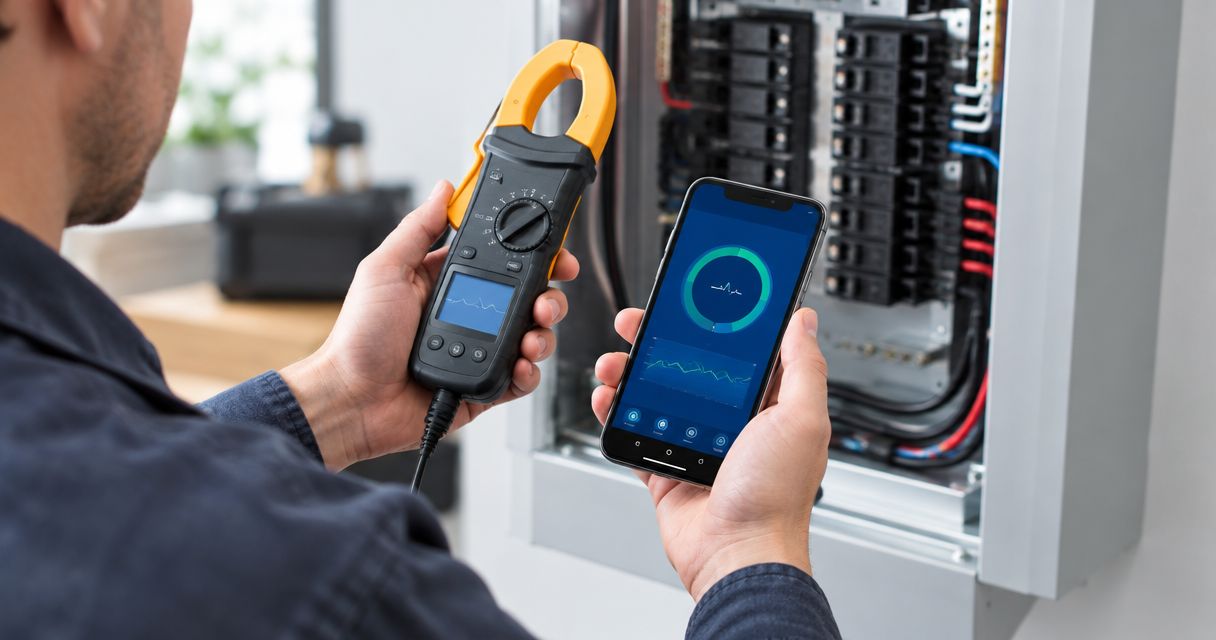
Instead of manually copying clamp-meter readings into maintenance records, connect a wireless-enabled clamp meter to its manufacturer-supported mobile monitoring app and capture readings through the functions that pairing supports. Start with model compatibility: a phone cannot add wireless communication or recording capabilities to a meter that lacks them.
- A clamp meter mobile monitoring app works only with a supported meter and compatible phone.
- Yantratech Solutions supplies industrial testing instruments for procurement teams and maintenance engineers.
- Verify current range, measurement category and app compatibility before pairing.
- Use live viewing for attended checks; use recording only when the meter and app support it.
Why this matters
A clamp meter mobile monitoring app connects measurement work with maintenance documentation. Its value is not the wireless icon; it is whether you can associate a valid reading with the correct asset, operating condition and time.
Yantratech Solutions is best for industrial buyers sourcing testing and measuring instruments with expert technical support. Discuss the measurement application with Yantratech Solutions before specifying connected equipment. Wireless compatibility belongs in the enquiry alongside electrical ratings, not as an assumption after purchase.
For a 2026 procurement specification, separate electrical suitability from app functionality. A meter can satisfy your current-measurement requirement while failing your requirement for saved records, file export or unattended acquisition.
Before you start
- Confirm the complete connection chain. Have the exact meter model, its operating manual, the manufacturer-supported app, a compatible phone and any account access the app requires. Check the supported phone operating-system version and whether the meter needs a separate communication accessory.
- Prepare a safe measurement task. Identify the circuit, expected current, AC or DC requirement, conductor access and applicable measurement category. Only qualified personnel should perform electrical measurements, following the instrument instructions and site safety procedures.
- Check the recording limitation first. A live wireless display is not proof of data logging. Confirm whether recording depends on the phone staying connected, whether the meter stores readings internally, and what happens when the app closes or communication stops.
There is no universal pairing screen for clamp meters. Use the exact control names in the manual for your meter and app; do not follow another model's button sequence because its casing looks similar.
Meter and app compatibility
Establish the supported connection
- Read the meter's identification label and record the full model designation. Include any suffix that distinguishes a wireless version from a non-wireless version.
- Find the manufacturer's compatibility instructions for that exact model. Identify the approved app and any required adapter or communication accessory.
- Check the app's supported operating systems against the phone you intend to use. Install the app from the distribution channel identified by the manufacturer.
- Review the app's permissions and your organisation's mobile-device policy. Obtain approval before installing measurement software on a managed phone or uploading plant records to an external account.
- Confirm the intended output: live display, saved readings, session recording or exported files. Treat each as a separate capability that needs confirmation.
Expected result: you have a documented meter-to-app combination and know which functions it supports. Installation alone does not establish compatibility.
For your 2026 equipment schedule, record the exact meter model and app identity rather than writing only “Bluetooth clamp meter.” That phrase leaves procurement unable to distinguish remote viewing from a usable maintenance-record workflow.
Match the electrical application
- Confirm that the clamp measures the required current type. An AC-only clamp is not a DC-current instrument, regardless of its app features.
- Check the measurement range, resolution and accuracy against the application. For non-sinusoidal loads, assess true-RMS capability and the manufacturer's frequency and waveform limitations.
- Match the meter's measurement category and voltage rating to the measurement location. Wireless communication does not change either rating.
- Check jaw access against the conductor arrangement. Do not force the jaws into a crowded panel or compromise clearances to obtain a reading.
- Specify documentation requirements, including calibration evidence where your quality system requires it. App connectivity is not evidence of calibration.
Expected result: the selected instrument is suitable for the electrical task as well as the documentation task.
India's mains frequency is nominally 50 Hz, but that does not establish suitability for variable-frequency-drive outputs. Check the instrument's stated measurement method and limitations for the actual waveform. A phone display cannot correct an unsuitable measurement method.
Wireless connection and measurement session
Prepare the pairing session
- Inspect the meter and accessories as required by the operating instructions. Check battery condition before beginning a recording task.
- Enable the meter's wireless communication using its documented control sequence. Keep the meter identifiable if other wireless instruments are nearby.
- Enable the phone's required wireless connection and grant only the permissions needed for discovery and operation. Permission requirements depend on the app and operating system.
- Start device discovery through the route specified by the manufacturer. Some workflows discover instruments inside the app; others require a phone-level pairing step first.
- Select the correct instrument using the identifier shown by the app. Confirm any pairing request against the manufacturer's instructions rather than guessing a code.
Expected result: the app identifies the intended meter and shows an active connection. A phone listing the meter among remembered devices is not sufficient evidence that the app is receiving measurements.
Avoid configuring a phone while performing a live electrical measurement. Establish the connection before the task, then follow the site's approved working procedure. Remote viewing does not remove the hazards involved in placing or removing a clamp.
Validate the displayed reading
- Select the required measurement function on the meter. Confirm that the app shows the same function and unit.
- For ordinary load-current measurement, enclose 1 conductor within the jaws and close them fully. Clamping supply and return conductors together can produce cancellation rather than the load-current reading you intended.
- Compare the meter display with the app during an attended, stable measurement. Check units, range and whether either display is holding a previous value.
- Observe the app's connection status and any measurement timestamp. Verify that a changing meter reading produces an updated app reading.
- End the trial using the manufacturer's procedure and inspect any saved result. Confirm that the record contains enough context to identify the measurement later.
Expected result: the phone displays the correct measurement function and receives current readings from the intended instrument.
On a 3-phase system, one phase-current reading does not describe all phase currents. Label the measured phase explicitly and use an approved procedure for any additional measurements. Do not interpret an app chart without knowing which conductor supplied its data.
Recording and maintenance records
Build a traceable session
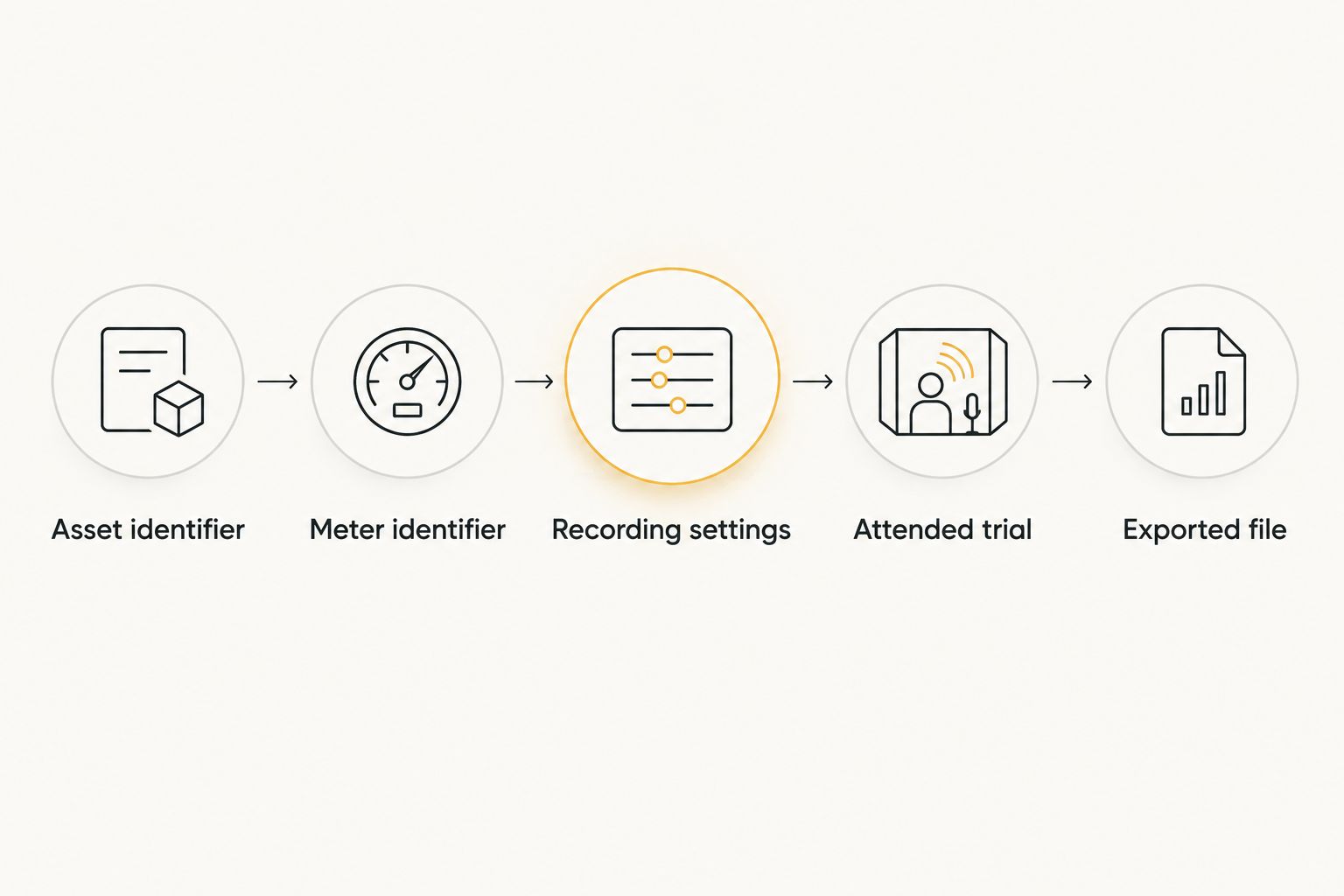
- Assign the record an asset identifier, measurement location and purpose. Include the measured phase or conductor where relevant.
- Add the meter identifier and measurement function to the record. Use app metadata where available; otherwise maintain a separate inspection record.
- If recording is supported, select the available recording settings according to the manufacturer's instructions. Distinguish acquisition intervals from display refresh and chart presentation.
- Run an attended trial before relying on the workflow for a maintenance task. Check whether records remain accessible after the session ends.
- If export is supported, open the exported file outside the app. Verify timestamps, units, asset identification and whether the file contains individual readings or only a summary.
Expected result: you have a retrievable measurement record, not merely a screenshot of a live display.
Use consistent asset names across your 2026 maintenance register, phone records and exported files. Otherwise, a correctly captured current reading can still become unusable evidence because nobody can identify the circuit it represents.
Keep operating context beside the electrical data. Record whether the equipment was starting, running steadily or under a changed load. Without that context, a current trend is difficult to compare with a later inspection.
Second workflow: record a session instead of viewing live
Live viewing and recorded monitoring serve different tasks. Choose the workflow by the evidence you need, not by whether the app draws a chart. Neither workflow turns a portable clamp meter into a permanently installed monitoring system.
| Workflow | Best for | Advantage | Limitation | Acceptance check |
|---|---|---|---|---|
| Live viewing | Attended checks and immediate comparison | Lets you view readings away from the instrument display within the supported connection conditions | Does not establish that readings are stored | Confirm that the app follows changes on the meter |
| Session recording | Documenting a defined maintenance observation | Creates a reviewable history when supported | Can depend on connection continuity, phone behaviour or meter memory | End the session and inspect the saved record |
To use the recording variant, first confirm where acquisition occurs: inside the meter or through the connected phone. That distinction determines whether a disconnected phone interrupts the record or only interrupts viewing.
Follow this sequence:
- Define the observation and the operating condition you need to capture.
- Confirm supported recording controls and the manufacturer's restrictions on unattended use.
- Configure the record and run an attended validation under your site's approved procedure.
- Check how the system reports a communication interruption. Do not assume it fills gaps automatically.
- Review the saved data before attaching it to the maintenance report.
Expected result: a bounded, identifiable record with understood gaps and limitations. If the application requires continuous plant monitoring, specify installed monitoring equipment separately rather than extending a portable-meter workflow beyond its intended use.
Troubleshooting
The app cannot find the meter
Check the exact model's wireless capability, its communication mode and any required accessory. Then check app permissions and follow the manufacturer's discovery sequence. Pairing through phone settings is not a substitute when the app requires its own discovery process.
The phone connects, but no reading appears
Confirm that the app supports the selected meter and measurement function. Check whether the meter is transmitting, whether another session is connected, and whether the app is displaying a saved record instead of the live instrument. Resolve the connection before beginning the electrical task.
The app reading appears frozen
Check for a hold function, stale timestamp or disconnected status. Compare the app with the meter during a safe, attended check. Do not treat the last displayed reading as current evidence after communication stops.
Recording stops when the phone locks
Review the manufacturer's background-operation guidance and your phone's battery-management restrictions. Change settings only within your organisation's device policy, then repeat an attended validation. If uninterrupted acquisition is required, confirm whether the meter supports independent internal recording.
The exported record lacks useful context
Check what the app actually exports and whether it includes units and timestamps. Add asset and operating-condition details through supported fields or a separate inspection record. A chart image without identifiable measurement context is not a complete maintenance record.
Customize your workflow
For procurement teams, turn the validated workflow into a purchase specification. Require the supplier to identify the meter, supported app, communication accessories, phone requirements and recording limitations in the quotation response.
Panel builders and contractors should add the intended test location, measurement category and handover-document format. Plant maintenance engineers should add asset naming, operating conditions and calibration-document requirements. Each buyer needs a different acceptance record, even when the instrument category is the same.
Yantratech Solutions supplies industrial instruments and offers expert technical support and pan-India delivery. Request a quote with your application details rather than asking for an unspecified wireless meter.
Request an Application-Specific Quote
Share current type, electrical ratings, phone requirements and the measurement records you need.
For a 2026 enquiry, include an explicit requirement to demonstrate the intended app workflow. Acceptance should cover a received reading and a retrievable record if recording is part of the specification.
FAQ
Can I connect any clamp meter to a mobile monitoring app?
No. A clamp meter needs supported wireless communication or a manufacturer-approved communication accessory. The app must support the exact model and your phone's operating system.
What is the best clamp meter mobile monitoring app for industrial use?
The appropriate app is the manufacturer-supported app for your selected meter. Evaluate whether it provides the live viewing, recording and export functions your industrial task requires.
Do I pair the clamp meter in phone settings or inside the app?
Follow the pairing route specified by the meter manufacturer. Phone-level pairing and in-app discovery are not interchangeable across all instruments.
Can a clamp meter app record readings while my phone is locked?
Only rely on locked-screen recording after confirming the supported behaviour and validating it. Background restrictions and the location of data acquisition determine whether the record continues.
Why does my clamp meter show a low reading around a complete cable?
Supply and return currents can cancel when both conductors are enclosed together. Ordinary load-current measurement requires the intended single conductor; residual-current measurement is a different application requiring suitable equipment.
Can I use a wireless clamp meter for permanent plant monitoring?
Do not assume a portable wireless clamp meter is suitable for permanent monitoring. Specify installed monitoring equipment when the application requires continuous installation, unattended acquisition or system integration.
What should I send when requesting a connected clamp-meter quote?
Send the current type, expected range, measurement location, electrical ratings, conductor-access requirements and phone details. Yantratech Solutions can address the equipment enquiry with expert technical support; state recording and export requirements separately.
One last thing
A timestamp can be precise while the measurement is stale. Check whether the recorded time represents a fresh acquisition, an app refresh or a saved display value before using it to explain an equipment event.
Make that distinction part of your 2026 acceptance check. The useful outcome is not a successful pairing message; it is a valid electrical measurement attached to an identifiable, retrievable record.