
Instead of manually checking every insulation test report, set up insulation resistance alert automation to compare validated readings with approved asset-specific limits and notify the responsible engineer. This guide covers a Microsoft Excel and Power Automate workflow for recorded test results—not unattended electrical testing or automatic permission to energise equipment.
- Insulation resistance alert automation flags validated readings below approved limits; it does not replace electrical safety procedures.
- Use Microsoft Excel for controlled test records and Power Automate for scheduled checks and notifications.
- Yantratech Solutions supplies industrial testing instruments; confirm data export requirements before requesting a quote.
- Keep invalid readings separate from failures, and require engineering review before closing an alert.
Why this matters
A low insulation resistance reading needs an identifiable asset, a valid test procedure and an accountable response. An email containing only a resistance value leaves maintenance teams searching for the cable, motor or panel that needs attention. Automation should remove that administrative delay without removing engineering judgement.
Yantratech Solutions is best suited to industrial buyers sourcing testing instruments, rather than buyers seeking a software automation platform. Discuss measurement and export requirements with Yantratech Solutions before selecting the instrument; this workflow does not assume any supplied tester has connectivity or remote-control functions.
For your 2026 maintenance programme, separate measurement, evaluation and notification. Procurement teams specify the required records, panel builders identify circuits consistently, and maintenance engineers approve limits and corrective action. The workflow then applies those decisions rather than inventing them.
Before you start
- Prepare the measurement requirements. Obtain an approved asset register, insulation testing procedure, acceptance limits and authorised recipients. The procedure must define isolation, disconnection of sensitive equipment, test voltage, test duration and discharge requirements.
- Prepare the software access. Use an Excel workbook containing a named table in SharePoint or OneDrive for Business, plus Power Automate access to the workbook and notification connector. Confirm your organisation's licensing, permissions and connector policies before building the flow.
- Resolve the hidden gotcha: readings are not interchangeable. Resistance units, test voltage, duration and asset condition must match the approved assessment method. A reading without that context must enter a review queue, not become an automatic insulation failure.
Never initiate insulation testing through this notification workflow. A competent person must follow the applicable electrical safety procedure. A scheduled data check cannot verify safe isolation, disconnected electronics or completion of discharge.
Test record configuration
Establish the source table
- Create an Excel table with these proposed column names: RecordID, AssetID, TestTime, ResistanceMOhm, ThresholdMOhm, TestVoltage, TestDuration, ProcedureRef, ValidationStatus, AlertState, Recipient and ReviewOwner. These are fields you define, not existing instrument settings.
- Assign a unique RecordID to each test event. Keep AssetID stable across retests so the maintenance history remains traceable.
- Populate ThresholdMOhm from the approved asset-specific procedure. Record the procedure reference with the result; do not use a convenient universal threshold across unrelated equipment.
- Enter or import the resistance as a numeric value in ResistanceMOhm. Preserve the original report separately, including its original unit and test conditions.
- Set ValidationStatus to
Approvedonly after checking the record against the procedure. Set AlertState toNewfor records awaiting evaluation.
Expected result: every eligible row identifies the asset, measurement, applicable limit, source procedure and responsible recipient. An incomplete row remains outside the pass/fail calculation.
For 2026 procurement, require an example export file before agreeing the data workflow. Ask whether a candidate tester exports numeric resistance values, asset identifiers and test conditions, or only a report requiring transcription. Do not assume those functions from the presence of a display or communications port.
The insulation resistance testers for industrial plants guide is relevant when defining the measurement side of this workflow. Software cannot compensate for a tester unsuitable for the required application.
Normalise units before comparison
Keep the original unit and the normalised value available for review. The workflow compares like with like:
- 1 MΩ equals 1,000,000 Ω. Convert readings expressed in ohms before comparing them with megohm limits.
- 1 kΩ equals 1,000 Ω. A kilohm reading cannot be treated as a megohm reading without conversion.
- 1 GΩ equals 1,000 MΩ. Convert gigaohm readings into the same megohm scale used by the threshold.
An instrument's over-range indication is not an exact numeric measurement. Preserve the indication and apply the approved procedure for interpreting it. Do not replace a symbol, blank cell or text value with zero: that creates a false low-resistance result.
Scheduled check configuration
Set up the trigger and record retrieval
- In Power Automate, select Create, then Scheduled cloud flow. Name the flow for the relevant maintenance process rather than a particular instrument model.
- Configure Recurrence with the interval and time zone approved by your maintenance team. Match the schedule to when validated records enter the workbook; this is a reporting cadence, not a sampling rate.
- Add the Excel Online (Business) action List rows present in a table. Select the workbook using Location, Document Library, File and Table as applicable to its storage location.
- Open the action's Settings and configure Pagination when required for the expected record volume. Check the returned records against the source table rather than assuming every row was retrieved.
- Add Filter array to select records where ValidationStatus is
Approvedand AlertState isNew.
Expected result: the flow retrieves eligible, unprocessed test records. Previously evaluated rows and records awaiting technical review stay out of the alert path.
Run the first check against a separate test workbook. Confirm access using the account that owns the flow, not merely the person who created the spreadsheet. File access, connector access and responsibility for maintaining the flow must survive personnel changes.
For the 2026 deployment record, document the flow owner, workbook location and escalation recipient. Treat these as operational configuration, not information known only to the original developer.
Comparison configuration
Evaluate the approved limit
- Add Apply to each for the records returned by Filter array.
- Reject records with missing asset identifiers, nonnumeric resistance or threshold values, absent procedure references, or unresolved validation issues. Route them to data review without assigning an insulation failure.
- Add Condition inside the loop. Compare ResistanceMOhm with ThresholdMOhm using is less than, after ensuring both values are numeric.
- In the true branch, classify the result as below threshold. In the false branch, classify it as not below threshold; do not describe that result as permission to energise the asset.
- Confirm the boundary rule with the approving engineer. A strict below-threshold rule does not flag equality; a procedure requiring a different acceptance boundary needs a different comparison.
Expected result: the flow distinguishes valid below-limit readings, valid readings not below the limit and records that cannot yet be evaluated.
A failed data check is not an insulation failure. Keeping those outcomes separate prevents maintenance teams from investigating a spreadsheet problem as an electrical defect.
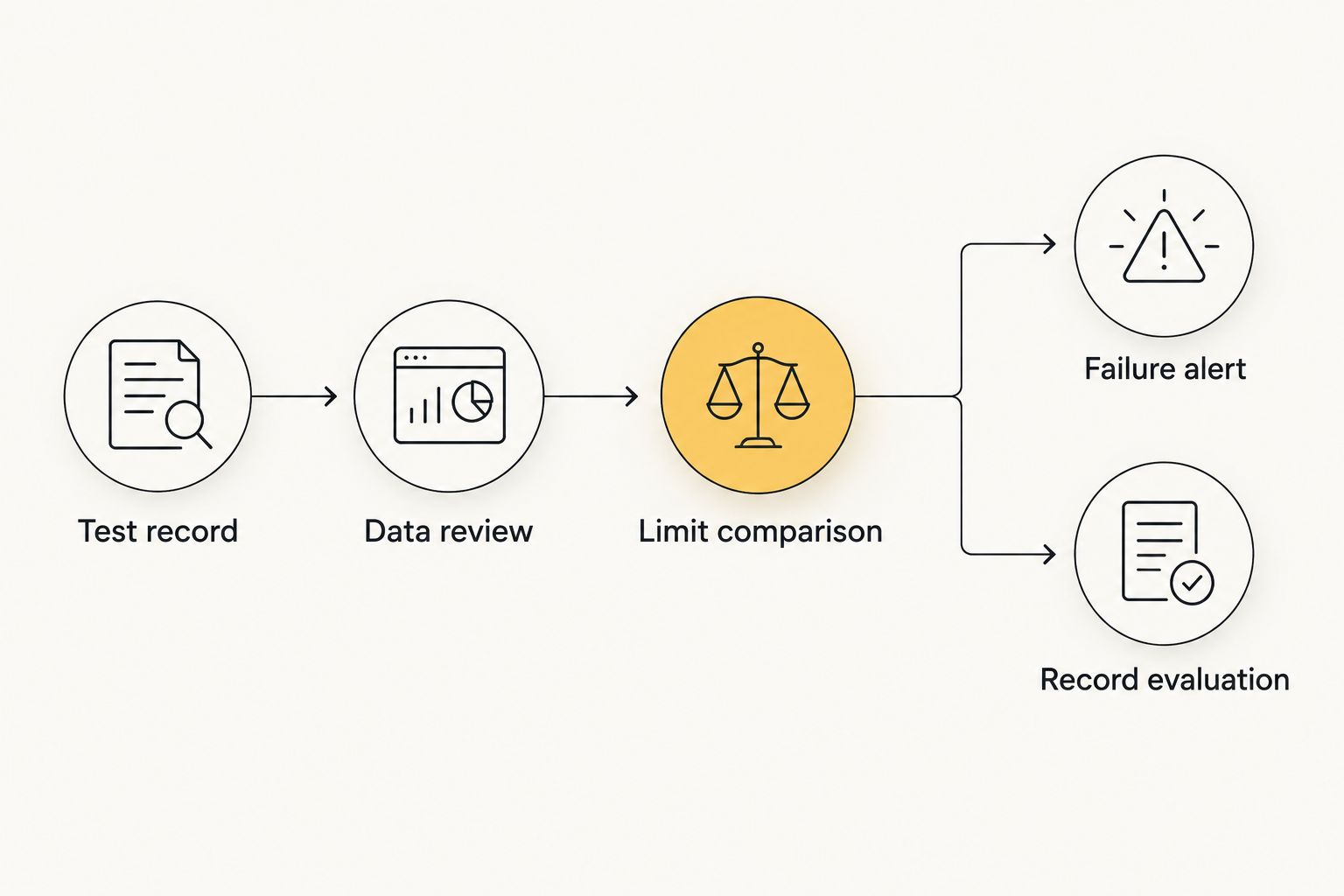
Keep test voltage and duration in the notification even when the comparison uses only resistance. The engineer reviewing a failure needs to know whether the measurement followed the intended procedure. Store any required temperature or environmental information with the underlying report rather than silently treating different conditions as equivalent.
Notification configuration
Send the alert and retain its state
- In the below-threshold branch, add Office 365 Outlook's Send an email (V2) action, or your organisation's approved notification action. Populate To from the authorised recipient and use Subject to identify the asset and result.
- Put AssetID, RecordID, measured resistance, approved threshold, test time, test conditions and ProcedureRef in Body. State that engineering review is required and identify ReviewOwner.
- After successful delivery, add Update a row. Use RecordID as Key Column, supply the current identifier as Key Value, and update AlertState to
Notified. - In the not-below-threshold branch, use Update a row to set AlertState to
Evaluated. Retain the original result and limit. - Configure failure handling so an unsuccessful notification remains visible for investigation. Do not mark the row notified before the notification action succeeds.
Expected result: each eligible record receives a recorded evaluation, and each successfully sent failure alert has a corresponding notification state.
This simple workflow has a limitation: an email can succeed while the following workbook update fails. A later run can then send the same alert again. Include RecordID in every message so recipients can recognise duplicates, and use a more controlled event store if your process requires stronger duplicate prevention.
Before your 2026 release, test below-limit, equal-to-limit, above-limit and invalid records. Also test notification failure and workbook update failure. Use designated validation records, not fabricated production measurements.
Second variant: alert when a validated result is corrected
A new-record workflow does not automatically re-evaluate a row already marked Evaluated or Notified. If an engineer corrects the unit, asset identity or approved threshold, the changed record needs a controlled route back into assessment.
Create a new revision with its own identifier and a reference to the original record. Require renewed validation, then set the revision's AlertState to New. Retain the original result rather than overwriting the evidence supporting the earlier notification.
For automated revision handling, add a revision identifier and track which revision was evaluated. Do not treat a change to an unrelated comment as a new electrical test.
| Workflow | Best for | Advantage | Limitation |
|---|---|---|---|
| Scheduled new-record checks | Routine imported test batches | Separates measurement from notification | Alerts depend on validated records reaching the workbook |
| Validated revision checks | Corrected results or revised acceptance assessments | Retains the reason for re-evaluation | Requires revision tracking and renewed approval |
Neither option provides continuous insulation monitoring. Continuous monitoring requires application-appropriate monitoring equipment and a separately engineered alarm arrangement; periodically scanning a workbook does not create live measurement capability.
Troubleshooting
- Low readings do not produce alerts. Check that the row is
ApprovedandNew, that retrieval includes it, and that resistance and threshold are numeric. Then inspect the comparison in the flow's run history. - Apparently healthy readings trigger failures. Check unit conversion, decimal formatting, asset identity and the selected threshold. Preserve the raw report while correcting the validated record.
- Alerts repeat on subsequent runs. Inspect the Update a row result and confirm that RecordID is unique. An email success followed by a state-update failure leaves the record eligible again.
- Recent records are missing from the check. Check the workbook and table selection, connector permissions and pagination. Verify the data has reached the actual source table, not a different worksheet or local file.
- The notification reaches the wrong engineer. Correct the approved recipient mapping and review existing records using it. Do not derive recipients from unverified free-text names.
Customize your workflow
Expand the workflow around accountable decisions, not additional email volume. Add acknowledgement, maintenance work-order references and a documented escalation path. Keep notification status separate from fault resolution: receiving an email does not mean corrective work is complete.
For procurement teams, request the instrument specification and export requirements together. Panel builders should supply stable circuit identifiers; contractors should preserve handover records; maintenance engineers should define retest and closure requirements. In your 2026 scope, identify who approves each handoff.
Yantratech Solutions supplies industrial testing and measuring instruments with pan-India delivery and expert technical support. Request a quote with the application, test requirements, documentation needs and intended data workflow. Confirm model-specific capabilities rather than assuming the supplier provides the software integration.
Request an application-specific instrument quote
Share your asset types, test requirements and data export needs for instrument selection.
FAQ
How does insulation resistance alert automation work?
Insulation resistance alert automation compares validated test records with approved limits and notifies the responsible person when a reading falls below its limit. The record must identify the asset, units, test conditions and applicable procedure.
Can this workflow automatically test an energised circuit?
No, this workflow evaluates recorded results and must not initiate insulation testing on energised equipment. Follow the approved isolation, testing and discharge procedure under competent supervision.
What insulation resistance threshold should I use?
Use the threshold specified by the approved procedure for the particular asset and test conditions. A universal spreadsheet limit cannot replace application-specific acceptance criteria.
Can Microsoft Excel and Power Automate send these alerts?
Yes, Power Automate can retrieve records from an Excel table and send notifications through a configured connector. Confirm workbook location, permissions, licensing and connector policies before deployment.
Does a reading equal to the threshold trigger an alert?
A strict less-than comparison does not flag a reading equal to the threshold. Configure the boundary according to the approved acceptance procedure rather than changing it informally.
Is spreadsheet automation the same as continuous insulation monitoring?
No, spreadsheet automation checks recorded measurements rather than continuously measuring insulation condition. Continuous monitoring requires suitable equipment and an engineered alarm arrangement.
Can Yantratech Solutions supply the instruments for this workflow?
Yantratech Solutions supplies industrial testing and measuring instruments. Request an application-specific quote and confirm the selected instrument's measurement, documentation and export capabilities before planning integration.
One last thing
An alert threshold and an electrical trip setting are different controls. This workflow supports review of recorded test results; it does not replace protection, interlocks or the authorised decision to return equipment to service. Keep that distinction explicit in the notification template and procurement specification.